

Operating System- Fundamental Concept and Architecture • 9 pages




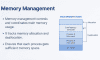
Fundamental Concepts and Architecture of an Operating System.
You know that moment when you're juggling five browser tabs, streaming music, editing a document, and downloading a file—all at the same time? Ever wonder who's actually managing this chaos?
It's not you. It's your operating system.
Most people think Windows, macOS, or Linux are just "the software that comes with the computer." But honestly? They're doing way more behind the scenes than you realize. Let me break it down.
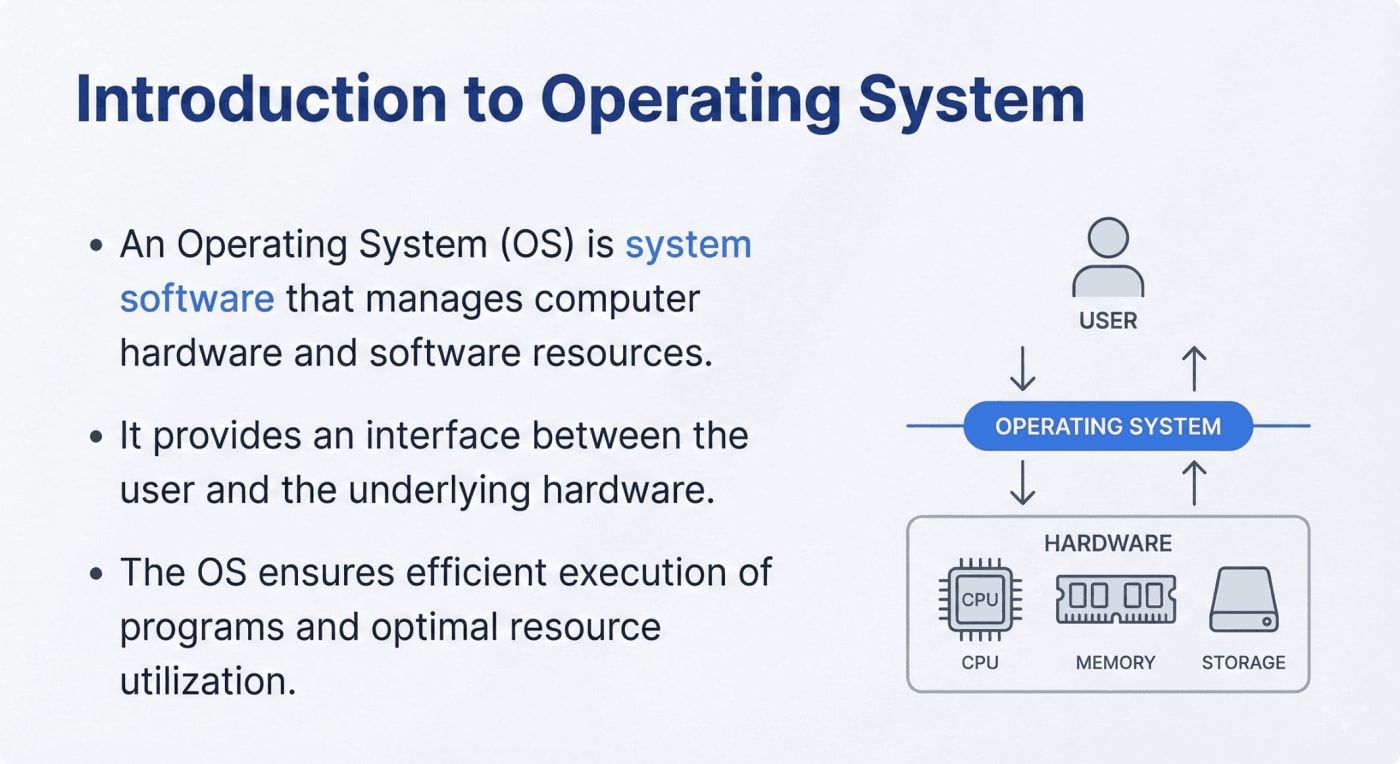
Think of your computer as a busy restaurant kitchen. You've got chefs (applications), ingredients (data), cooking equipment (hardware like CPU, memory, storage), and hungry customers (you, the user).
Now, who makes sure the right chef gets the right ingredients at the right time? Who decides which dish gets cooked first? Who ensures the oven doesn't explode from being used by three chefs simultaneously?
That's the head chef—your Operating System (OS).
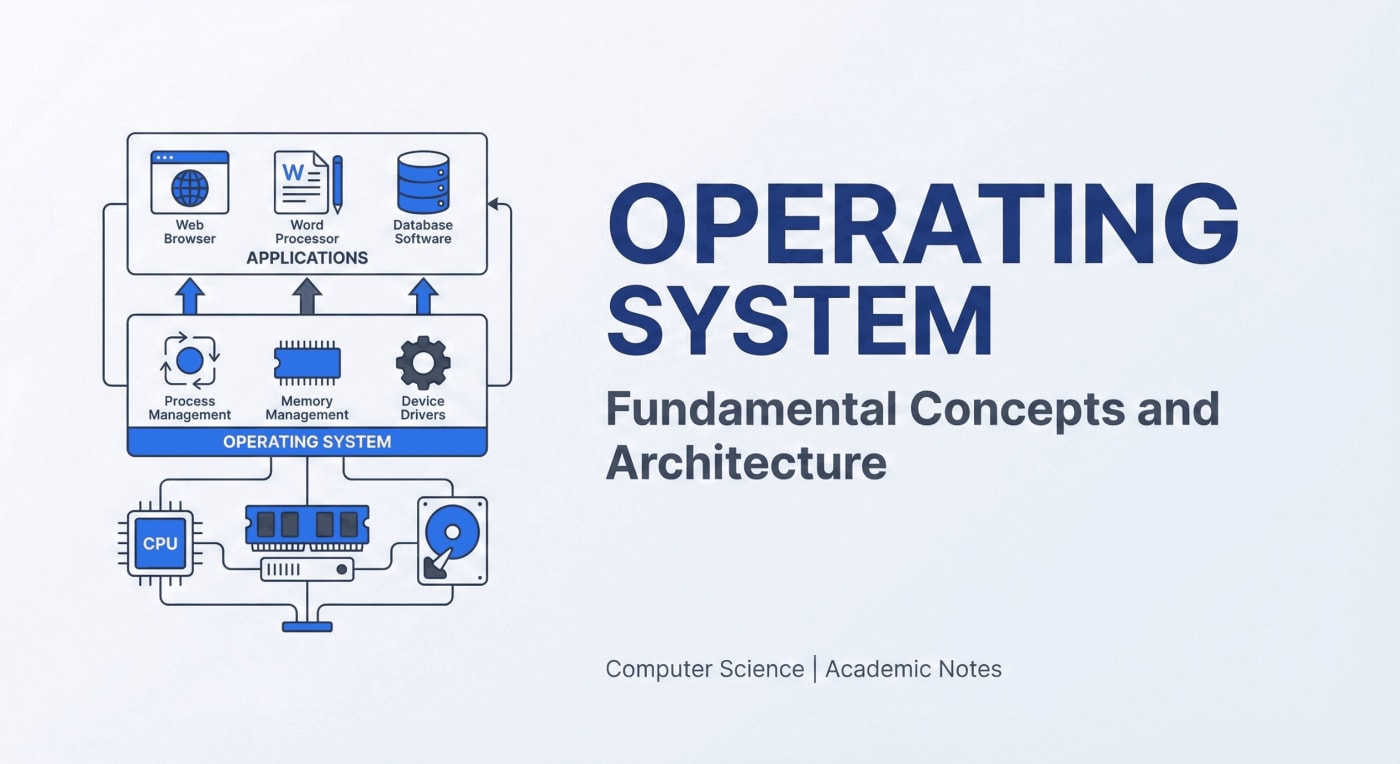
In technical terms, an OS is system software that manages your computer's hardware and software resources. It sits between you and the raw machinery, translating your clicks into actions the computer understands.
Without it? Your fancy laptop is just an expensive paperweight.
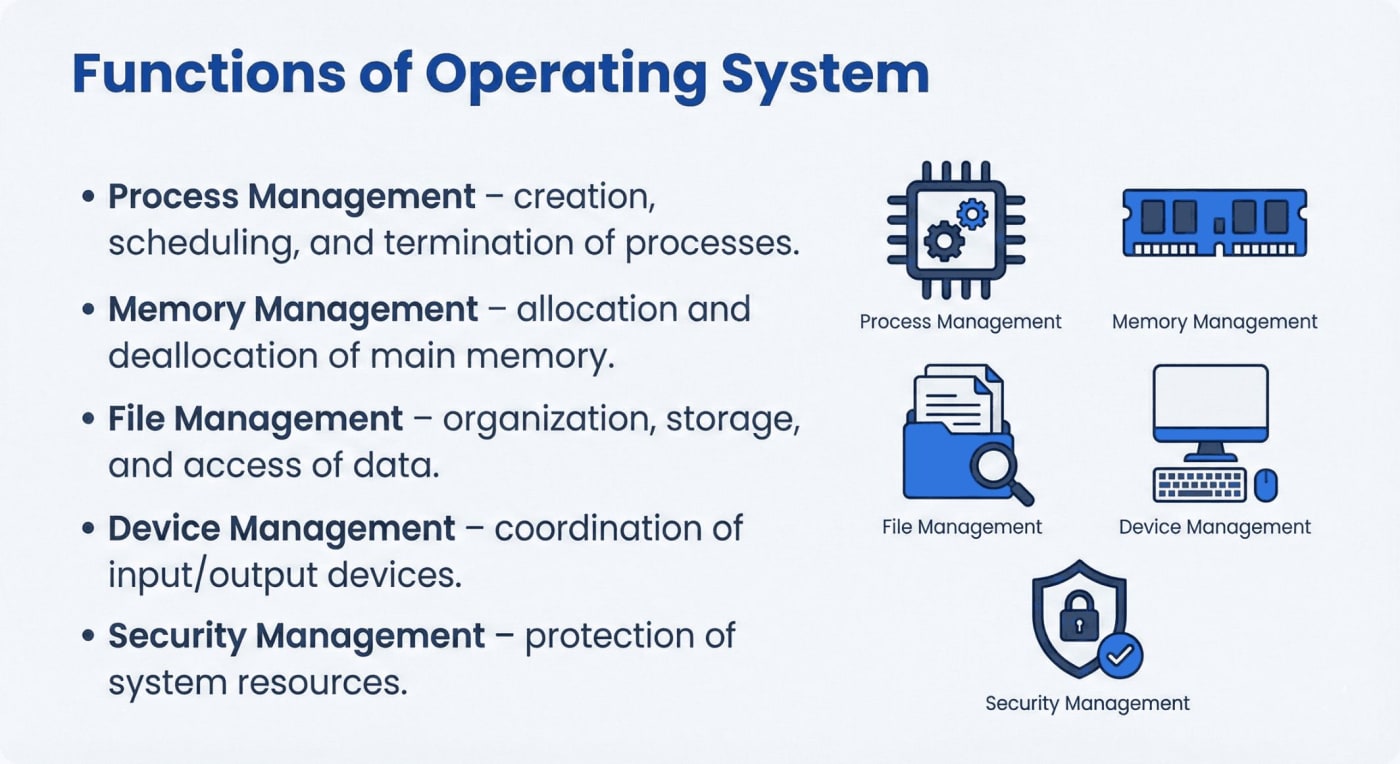
Here's where it gets interesting. The OS isn't just sitting there looking pretty. It's constantly working—like a behind-the-scenes manager handling five critical jobs:
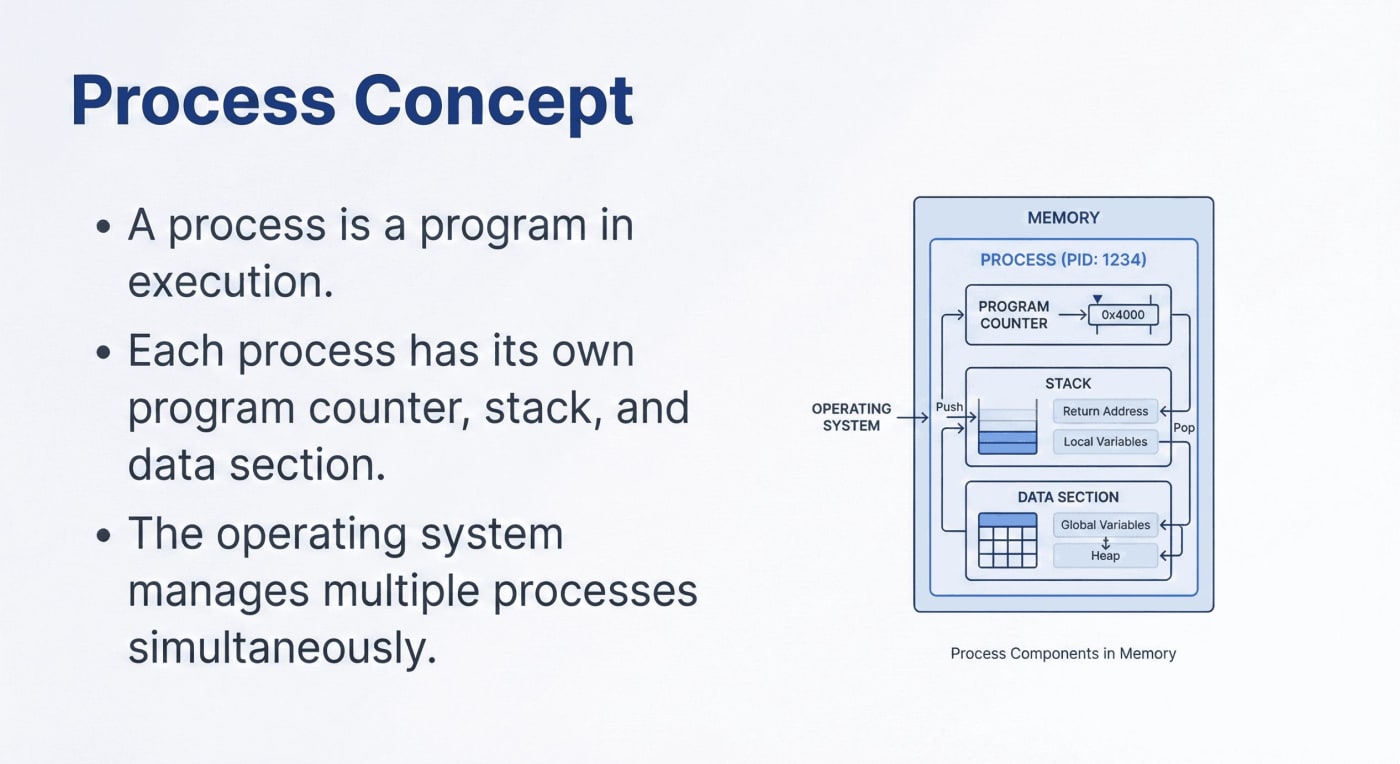
Process Management
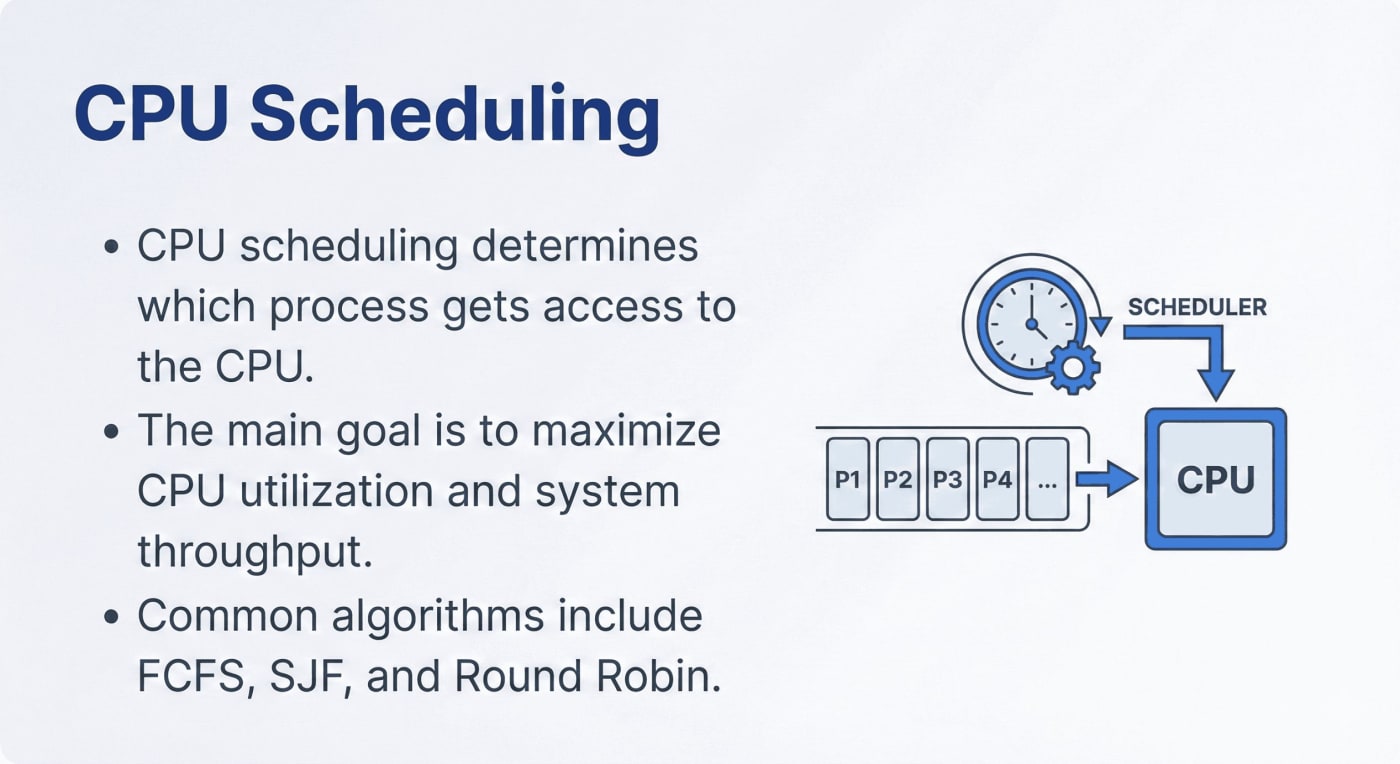
Every time you open an app, the OS creates a "process"—a running instance of that program. Chrome wants to run? The OS assigns it memory and CPU time. Spotify playing music in the background? The OS schedules when it gets processing power. You close the app? The OS terminates the process and frees up resources.
It's juggling dozens, sometimes hundreds, of processes at once. And you don't feel the chaos because it's that good.
Memory Management
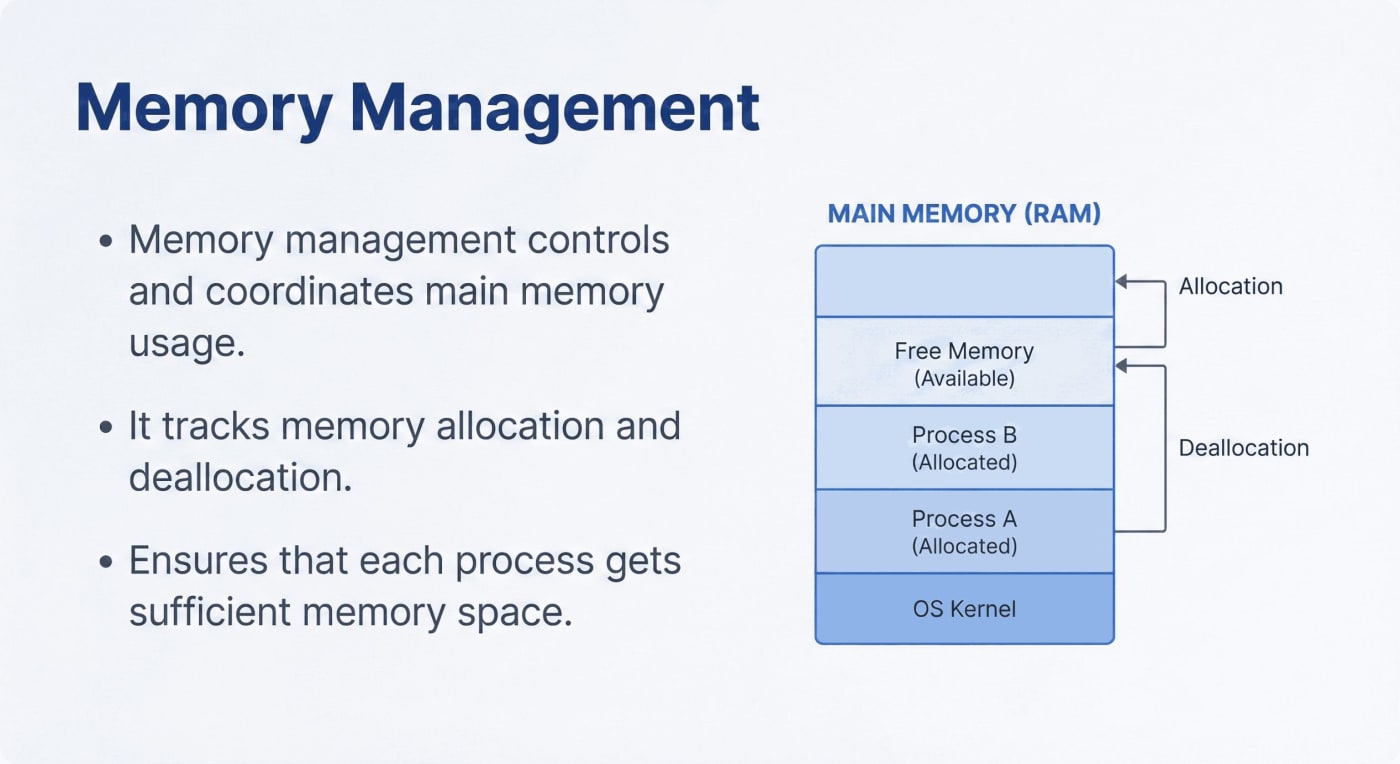
Your computer has limited RAM (main memory). The OS decides who gets how much. If Chrome is hogging 2GB, Word gets 500MB, and Spotify gets 200MB—the OS allocates and tracks all of it. When you close Chrome, the OS deallocates that memory so something else can use it.
Think of it like Tetris, but with memory blocks instead of falling shapes.
File Management
Every file you save, every folder you create, every photo you download—the OS organizes it all. It knows where "Project_Final_v3.docx" lives on your hard drive, how to retrieve it, and how to keep it safe from corruption.
You just click "Save." The OS does the heavy lifting.
Device Management
Plugged in a USB drive? The OS recognizes it. Printing a document? The OS communicates with your printer. Using a wireless mouse? The OS coordinates input signals.
Every piece of hardware connected to your computer needs a "driver"—a translator so the OS can talk to it. The OS manages all these conversations.
Security Management
The OS protects your system. It controls which apps can access what data, prevents malicious software from messing with critical files, and ensures different users on the same computer can't snoop on each other's stuff.
It's like a bouncer at a club, checking IDs and keeping troublemakers out.
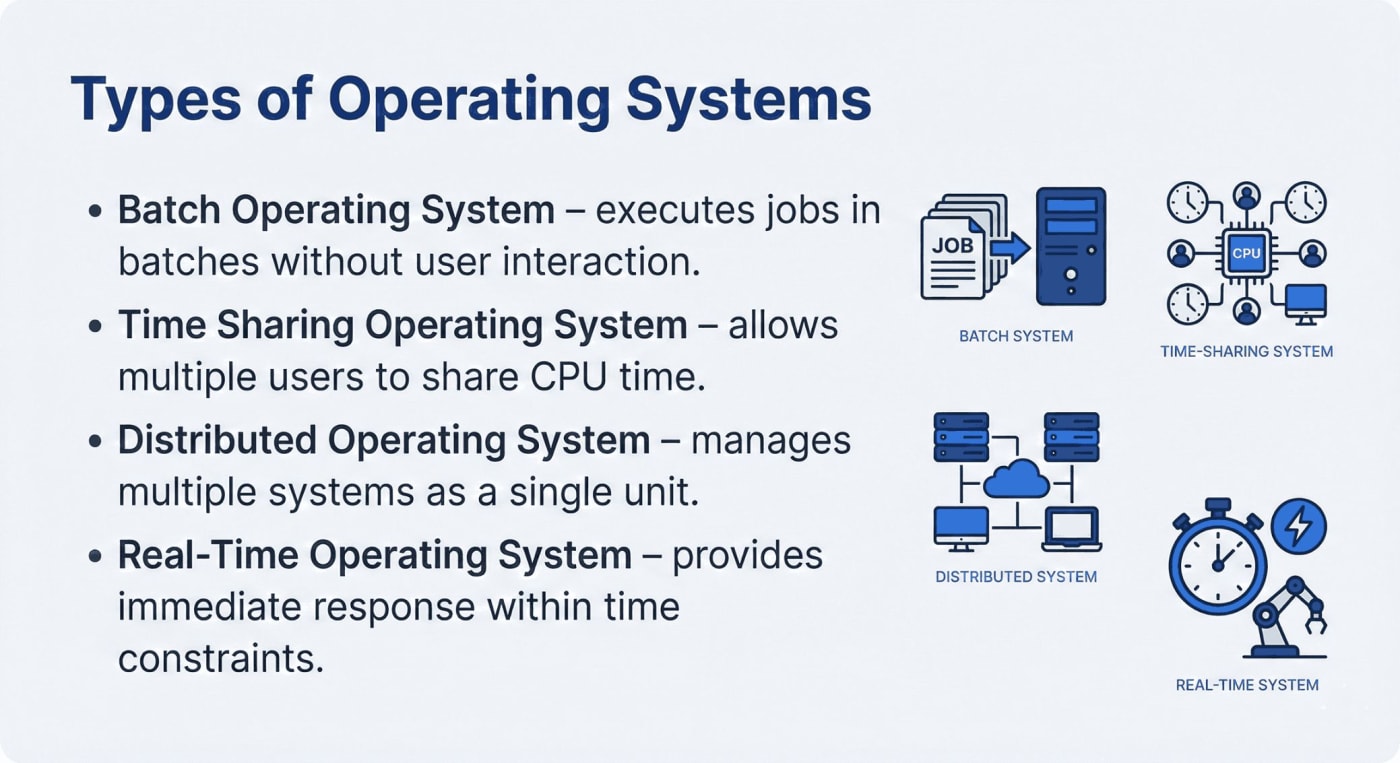
Not all operating systems work the same way:
Batch Operating Systems handle jobs in batches—like printing hundreds of payroll checks overnight without human interaction. Old-school, but efficient for repetitive tasks.
Time-Sharing Operating Systems let multiple users share CPU time. Your college computer lab where 30 students log into one server? That's time-sharing. Everyone gets a slice of processing power.
Distributed Operating Systems manage multiple computers as if they're one. Cloud computing, anyone? Google's servers work together like a single mega-computer—that's a distributed OS in action.
Real-Time Operating Systems respond instantly. Your car's airbag system, hospital ICU monitors, airplane controls—they can't afford delays. Real-time OS ensures responses happen within milliseconds.
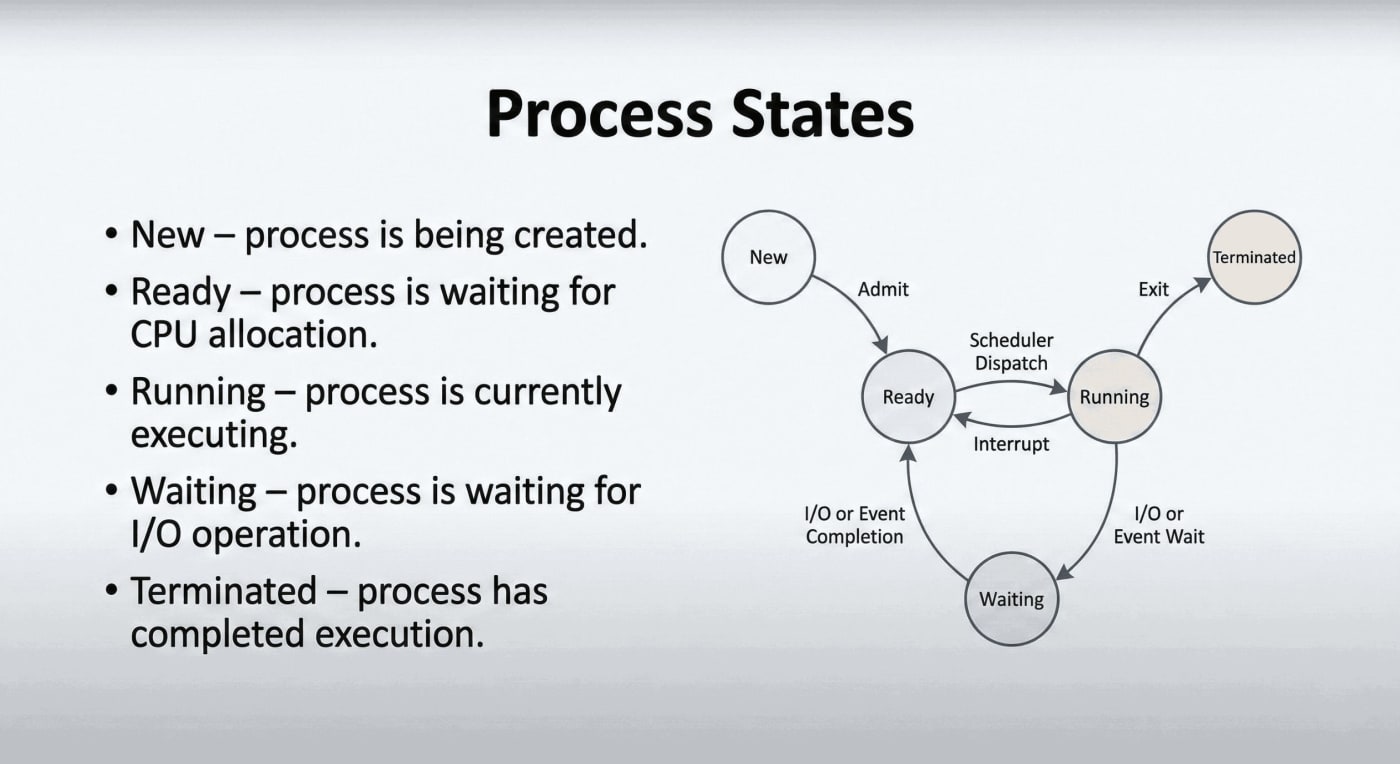
Let's follow one process—say, you opening a Word document.
New: You double-click the file. The OS creates a new process.
Ready: The process is waiting for CPU time. It's in line.
Running: The OS scheduler gives it CPU access. Word starts loading.
Waiting: Word needs to read the file from your hard drive. It waits for that I/O operation to complete.
Back to Ready: File loaded. Now it's waiting for CPU time again to display the content.
Running again: CPU time assigned. Your document appears on screen.
Terminated: You close Word. The OS ends the process, frees memory, and cleans up.
All of this happens in seconds. You just see "Word opened."
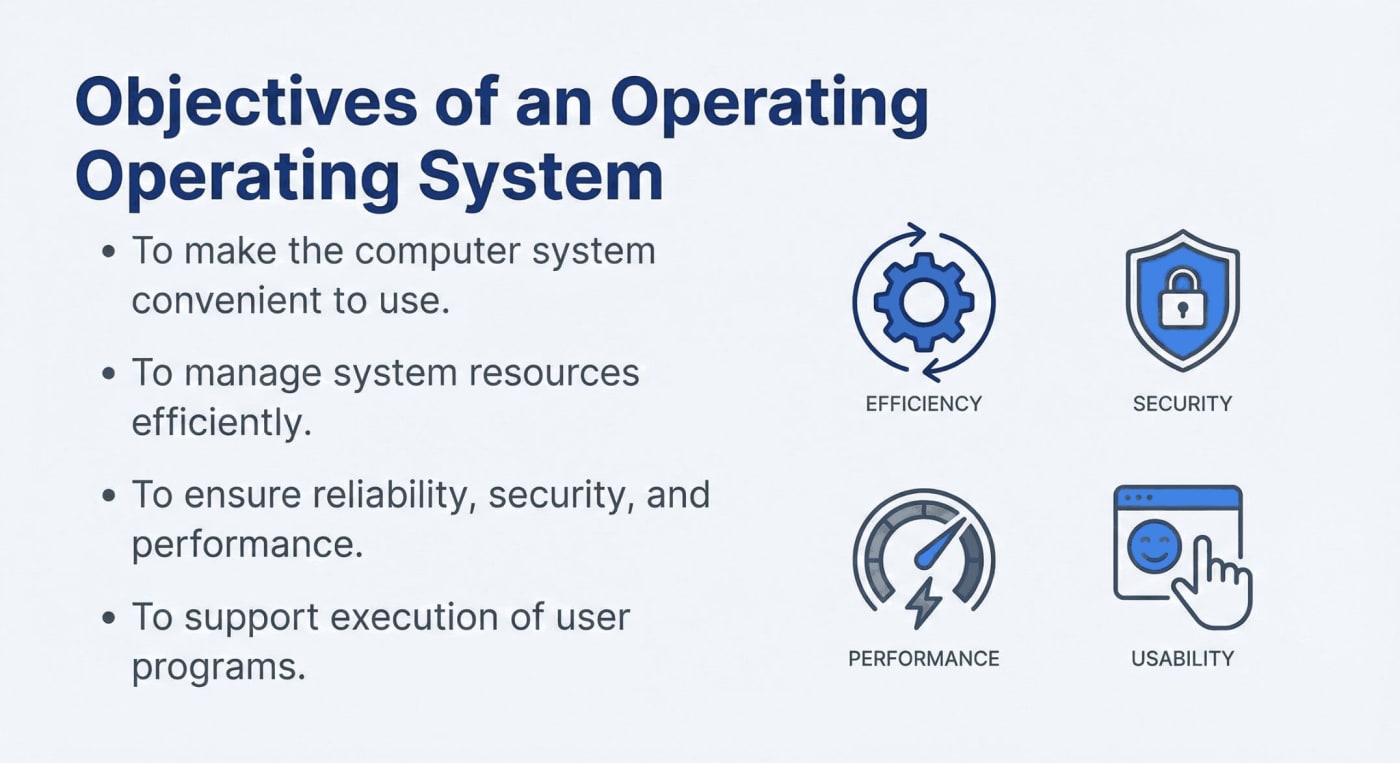
Your operating system is the reason you can:
Run multiple apps without everything crashing
Save files without worrying about where they physically go on disk
Plug in a new device and have it "just work"
Switch between tasks seamlessly
Trust that your files are (relatively) safe
It's working 24/7, managing resources, scheduling tasks, preventing conflicts, and making sure your computer experience feels smooth.
Next time your computer freezes or acts weird, remember—it's not always the hardware. Sometimes, the OS is drowning in process requests, memory conflicts, or device driver issues.
But most of the time? It's handling everything beautifully. You just don't notice because great operating systems are invisible. They work so well, you forget they're even there.
And that's the whole point.

I'm Ayush Kumar, a cross-platform Software Developer.


6 slides • 8 months ago
6 slides • 7 months ago
37 slides • 7 months ago

10 slides • 6 months ago